Get up and running with React Native SalesforceMobleSDK Project for iOS

The goal of this post is to show you an easy way to get up and running with React Native SalesforceMobleSDK for iOS.
In a nutshell, there are four things we have to do:
-
Install Dependencies
-
Create a Connected App In Salesforce
-
Clone a project template
-
Verify the Project Runs Locally
If you’re planning on building and releasing an app there are way more steps, but the goal of this post is to get you up and hacking!
Install Dependencies
The first thing we need to do is make sure you have all of the dependencies installed, if you don’t here are links to install guides:
-
node — https://nodejs.org/en/
-
CocoaPods — sudo gem install cocoapods -v 1.4
Note If You have a higher version of cocoapods, you will get an error like this:
Installed pod version (1.5.3) is more than the maximum supported version (1.4). Please downgrade your version of pod.
To resolve this issue, run sudo gem uninstall cocoapods .
Create a Connected App In Salesforce
-
Login to your Salesforce Org
-
Switch to Lightning Experience
-
setup > search for app
-
Click on Apps > App Manager
5. Click on New Connected App
6. Fill out the required fields.

7. Check Enable OAuth Settings

8. For Callback URL you can enter anything. Because we’re not going to redirect the user to a different website once auth’d. I suggest the format: myappname://auth/success

9. Choose appropriate selected OAuth Scopes. (Use principle of least privilegehere.)
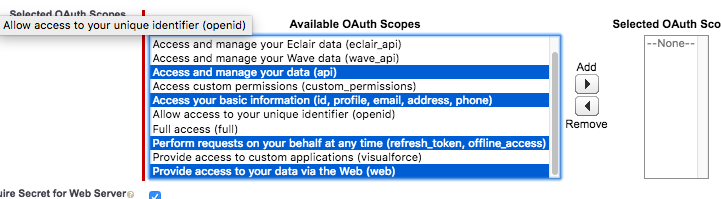
10. Save. Copy the Consumer Key and Callback URL values for later use.
Clone a Project Template
We’re going to use the ReactNativeTemplate part of SalesforceMobileSDK-Templates repo.
-
Navigate to a directory that you want place this repo in terminal .
-
git clone https://github.com/forcedotcom/SalesforceMobileSDK-Templates.git
Run Locally
-
cd SalesforceMobileSDK-Templates/ReactNativeTemplate — Change into the ReactNativeTemplate Directory
-
node ./installios.js — Run the install script
-
open ios/ReactNativeTemplate.xcodeproj — Opens the project in XCode
-
In xcode open up AppDelegate.m
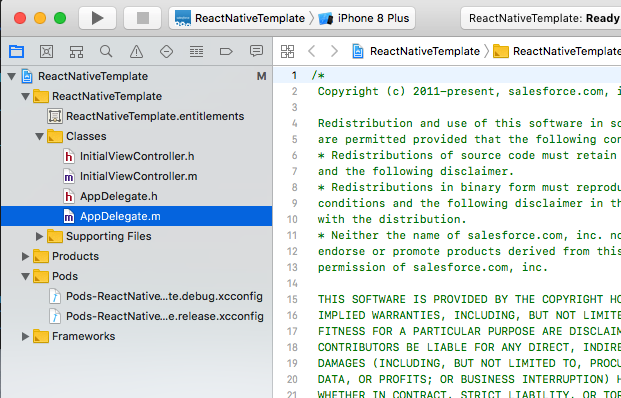
5. Replace the values on line 39 and 40 with those found in your Salesforce Connected App Settings that we saved earlier.

6. npm run start — Runs the bundler for React Native.
7. Once you see Loading dependency graph, done. click on the play button in the upper left to run on the simulator.
That’s it you’ve now got a project running that you can hack around in and see how React Native interacts with Salesforce.